
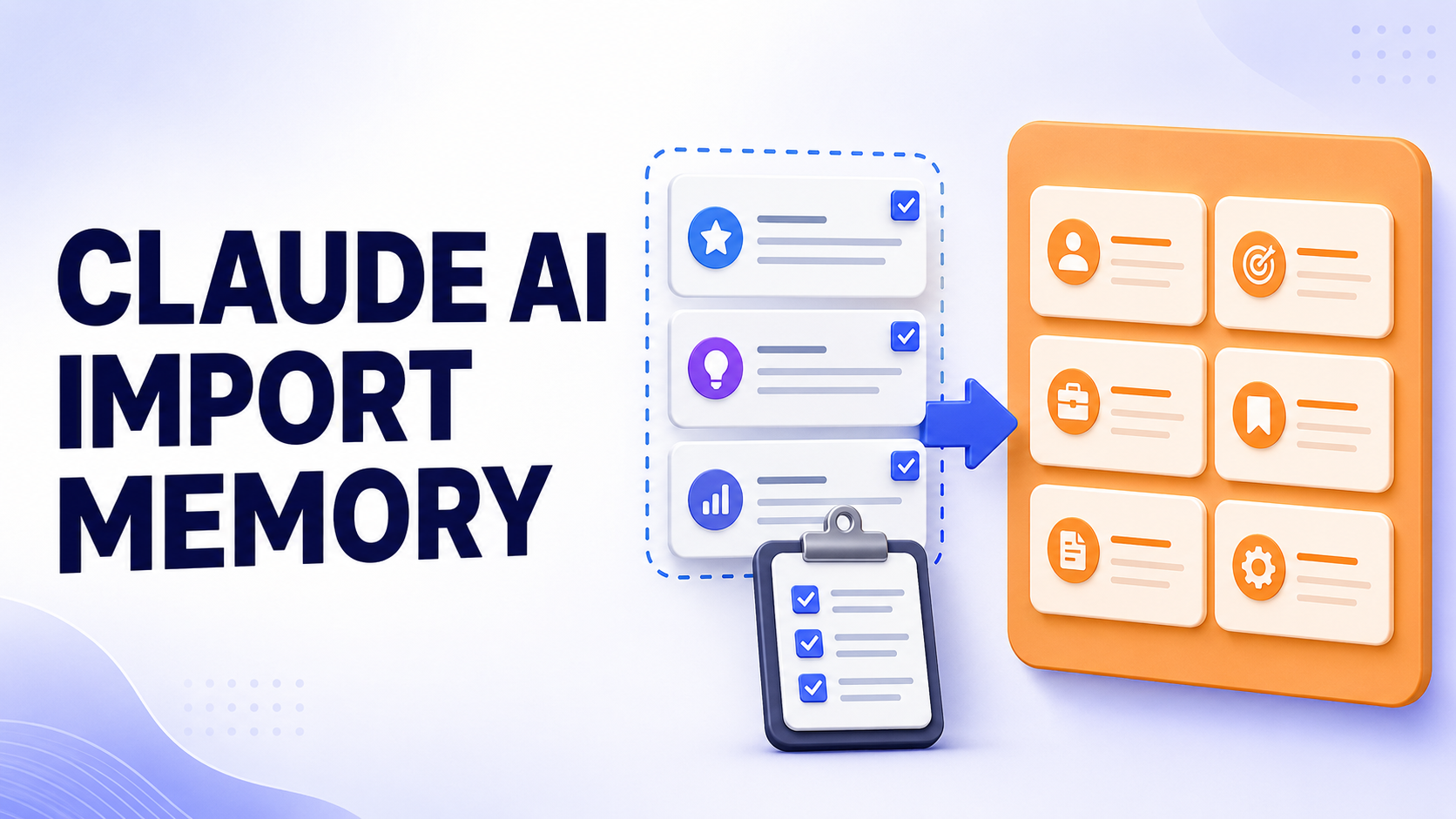
Claude AI import memory lets you move useful context from another AI assistant into Claude without teaching it all your preferences again. The transfer is manual: you ask the old assistant to produce a structured text summary, review that summary, and paste it into Claude’s memory importer.
This process can carry over response preferences, professional context, active projects, recurring workflows, tools and important corrections. It does not import your complete conversation history, attachments or account. Claude reads the pasted text, selects information it considers useful and converts it into its own memory entries.
That distinction matters. Memory import is a practical head start, not a lossless account migration. Anthropic also labels the feature experimental, so every import should be reviewed and tested.
Claude Memory Import at a Glance
| Question | Current answer |
|---|---|
| What can be moved? | Useful context such as working preferences, response instructions, projects, goals, tools and professional details |
| What cannot be moved? | Complete chat transcripts, attached files, artifacts, account settings and the original assistant’s internal memory system |
| How is information transferred? | By copying a text export from the old assistant and pasting it into Claude |
| Is it an automatic sync? | No. There is no live connection between the two AI accounts |
| Can Claude omit information? | Yes. Claude extracts selected details and may not retain everything |
| Is it available to free users? | Anthropic’s March 2026 release notes say memory is available to all Claude users, including free users |
| How long does it take? | The new memory experience should update shortly after import; Anthropic says the legacy experience may take up to 24 hours |
| Is the feature final? | No. Anthropic describes memory importing as experimental and under active development |
Team and Enterprise access can depend on organisation settings. Anthropic is also moving accounts from a legacy memory interface to a newer one, so button names and locations may differ.
What Claude AI Import Memory Actually Does
Claude does not open your ChatGPT, Gemini, Copilot or other AI account. It does not copy a hidden database, download every conversation or continuously sync future changes.
Instead, the process works like this:
- Your existing assistant produces a readable summary of what it remembers or has learned.
- You remove anything private, wrong, outdated or irrelevant.
- You paste the cleaned text into Claude’s import screen.
- Claude extracts useful details and saves them as individual, categorised memory entries.
- You review, edit or delete those entries.
The result is a Claude-native memory based on the text you supplied. It may resemble the old assistant’s memory, but it is not an identical copy.
Memory Import Is Not Chat-History Import
These features are easy to confuse:
| Feature | Purpose | What it does not do |
| Memory import | Gives Claude durable facts, preferences and working context from another AI | Does not recreate old conversations |
| Full account data export | Creates an archive for access or backup | Cannot be imported as complete history into another personal Claude account |
| Past-chat search | Lets Claude find information in conversations already held on Claude | Does not search chats from another provider |
| Claude Projects | Keeps instructions, files and context within a particular project | Should not be treated as a replacement for general memory |
Anthropic’s current getting-started guidance explicitly says that conversation history from another AI provider cannot be imported into Claude. Free, Pro and Max users can instead transfer useful context through memory import.
Before You Import: Use a Privacy and Accuracy Filter
Do not paste an AI-generated memory export into Claude without reading it. The old assistant may include sensitive information, outdated assumptions or details about other people.
Use this checklist first:
- Remove passwords, passkeys, one-time codes, API keys and access tokens.
- Delete bank details, card numbers, tax identifiers and government ID numbers such as PAN or Aadhaar.
- Remove confidential client information, unpublished business data and private third-party conversations unless you have permission to use them.
- Correct old job titles, completed projects, former addresses and abandoned goals.
- Delete response rules you no longer want.
- Resolve contradictions, such as one entry asking for concise answers and another requiring extensive explanations.
- Keep dates where they help Claude understand which information is current.
- Separate general working preferences from instructions that belong only to one project.
A smaller, accurate import is more useful than a large, unreviewed dump.
How to Import Memory into Claude Step by Step
Step 1: Ask Your Current AI to Prepare a Memory Export
Open the assistant you are moving from and paste the following original migration prompt:
Prepare a portable context file for moving my useful memory to another AI assistant.

Include only information supported by saved memory, my explicit instructions or prior conversations you can access. Organise it under:

1. Response and formatting instructions
2. Professional profile and responsibilities
3. Active projects, current status and key decisions
4. Goals and recurring tasks
5. Tools, platforms, languages and technologies
6. Workflows and quality standards
7. General preferences
8. Corrections I have made to earlier information or behaviour

For every item, include a date when known and label its basis as “saved memory,” “user instruction” or “inferred from prior chats.” Preserve my wording for explicit instructions where practical.

Exclude passwords, security credentials, payment information, government identifiers, private third-party data and sensitive medical or financial information.

Return the result inside one Markdown code block. After the code block, identify any categories you could not access and state whether the list is complete.
This prompt asks the source assistant to distinguish saved information from inference. That makes questionable entries easier to spot before they reach Claude.
If the source assistant says it cannot access previous chats or stored memory, do not assume it has produced a complete export. Create a short manual document containing only the preferences and project facts you want Claude to use.
Step 2: Edit the Export
Paste the response into a local text editor. Remove unnecessary personal details and rewrite vague entries.
For example, change “User likes detailed answers” to “For technical tutorials, give the direct answer first, then numbered steps and a troubleshooting table.” Replace “User is working on a website” with the project name, platform, current objective and latest completed milestone.
Durable, specific instructions are easier for Claude to apply than broad personality descriptions.
Step 3: Open Claude’s Import Screen
Anthropic currently documents two interfaces:
- New memory experience: Open Settings > Memory and select Start import.
- Legacy memory experience: Open Settings > Capabilities, find Memory, and select Start import. Some accounts may also show an Import memory to Claude card on the home screen.
If you see Settings > Memory, use that route. If Memory remains under Capabilities, your account is still on the legacy experience.
Step 4: Add the Cleaned Memory
Paste the edited export into the import box and select Add to memory. Claude will process the text and create its own memory entries.
Do not close the process assuming every sentence was saved. Claude’s memory is designed mainly around useful work context, and the experimental importer may leave out personal or low-priority information.
Step 5: Review What Claude Saved
Open Claude’s Memory panel and inspect the entries by category. Then start a fresh conversation and use this verification prompt:
Using only your saved memory, list what you know about my response preferences, professional context, active projects, tools and current goals. Mark anything uncertain or potentially outdated.Compare Claude’s answer with your cleaned source file. Check names, dates, project status, formatting rules and negative instructions such as “do not use.”
Step 6: Correct Gaps Manually
If an important detail is missing, add it through the Memory panel or tell Claude what to remember in a chat. In the new experience, you can use the Tell Claude what to change or remove box. You can also delete individual entries that are inaccurate or too sensitive.
For important project-only information, place it in the relevant Claude Project rather than assuming it should become general memory. Anthropic says each project has its own memory space and project summary, which helps prevent unrelated work from mixing.
Moving Memory from Different AI Assistants
The Claude-side process is the same regardless of the source, but the quality of the export can vary.
From ChatGPT
Run the migration prompt in a new chat and ask ChatGPT to label stored memory separately from conclusions drawn from prior conversations. Review the output for old custom preferences and duplicated project details. Importing this summary will not reproduce your old ChatGPT conversation list inside Claude.
From Google Gemini
Use the same prompt and verify whether Gemini is reporting durable memory, accessible past-chat context or only information in the current conversation. Keep the labels in the export so Claude receives facts with clear provenance.
From Microsoft Copilot or Another Assistant
If the service cannot assemble cross-chat memory, build a manual context file. Include your role, active work, response rules, commonly used tools and the latest status of each ongoing project. Claude accepts useful pasted context; the source does not need a special Claude integration.
Avoid importing the same facts repeatedly from several assistants. Duplicate or conflicting entries can make future responses less consistent.
What Happens After the Import?
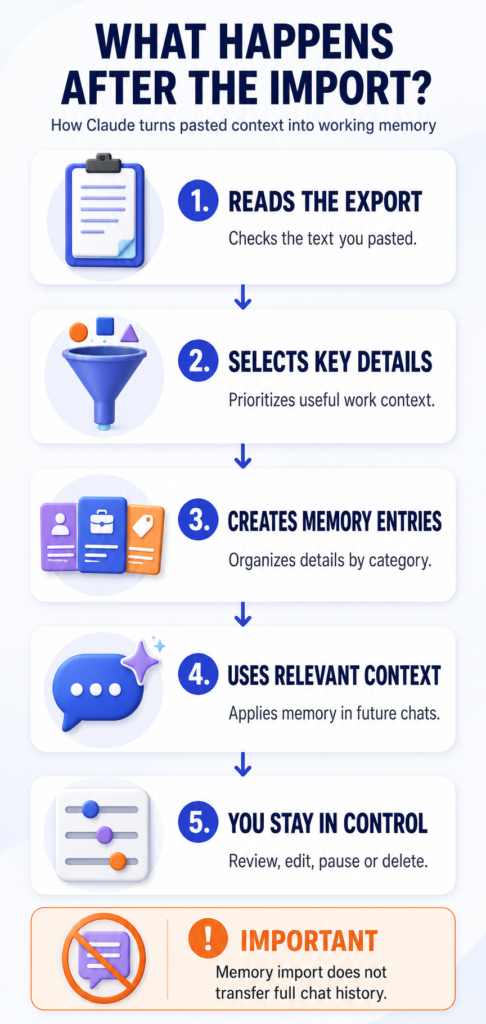
Claude’s updated memory system stores individual entries in categories and can read, write and update them as you chat. This replaced the older daily summary model for users who have received the July 2026 experience.
Memory and past-chat search are related but separate:
- Memory supplies durable context across new conversations.
- Past-chat search retrieves relevant information from earlier Claude conversations and is currently a paid-plan feature.
- Project memory remains separated by project.
- Incognito chats do not contribute to personal memory or normal chat history, although Team and Enterprise retention and export policies can still apply.
You can pause memory without deleting its entries. Resetting memory is different: Anthropic says a reset permanently deletes all memories, including project memories, and cannot be undone.
One privacy detail deserves special attention. Under the new experience, deleting a Claude conversation does not necessarily remove memory entries previously generated from it. Review and delete the related entries separately in the Memory panel.
Claude Memory Import Troubleshooting
| Problem | Likely explanation | What to do |
| “Start import” is missing | Your account may show a different memory interface, be awaiting rollout or be controlled by an organisation admin | Check both Settings > Memory and Settings > Capabilities. Team or Enterprise users should ask their admin whether memory is enabled |
| Claude imported only a few items | The importer selected work-relevant context or the source export was vague | Rewrite essential items as short, specific statements and add them manually |
| Personal details were skipped | Claude’s memory is designed to prioritise work-related usefulness | Add only the personal detail that genuinely improves future assistance |
| Old instructions still affect answers | Conflicting or outdated entries remain in memory | Review all related entries, edit the current rule and delete obsolete versions |
| Previous chats do not appear in Claude | Memory import is not conversation-history import | Keep the original archive separately and move only the context needed for future work |
| The import is not visible immediately | Processing time differs between the new and legacy experiences | Check again later; Anthropic says legacy imports can take up to 24 hours |
| Claude behaves as if it remembers nothing | Memory may be paused, disabled or isolated by project scope | Check Memory settings and test in a fresh standalone chat and inside the relevant project |
| You want to move data between personal Claude accounts | A full Claude data export is not a supported account-migration file | Export visible memory as text and import or add the useful entries manually |
If the feature remains unavailable after checking the documented settings paths, use Claude’s official support channel rather than a third-party migration tool that asks for account credentials.
A Better Format for Long-Term AI Memory
Useful memory should be durable, specific and easy to verify. Use statements such as:
- “For tutorials, begin with the result, then give numbered steps and a troubleshooting table.”
- “Project Atlas runs on WordPress. The current goal is improving organic search traffic without publishing unrelated topics.”
- “Use Indian English and show prices in rupees unless another market is specified.”
- “Do not claim a feature was tested unless first-hand testing actually occurred.”
Avoid entries such as “write well,” “remember everything,” “make this viral” or “I like technology.” They lack the conditions Claude needs to act consistently.
Add a status and date to changing information:
[2026-07-24] Project Atlas — redesign complete; next task is updating internal links across the five priority guides.When a project milestone changes, update or replace the old entry instead of adding another contradictory version.
Final Verification Checklist
Before relying on the imported memory:
- Confirm memory is enabled.
- Review every imported category.
- Remove confidential or unnecessary details.
- Correct dates, names and current project stages.
- Test one formatting preference in a new chat.
- Ask Claude to identify uncertain memories.
- Check project-specific context inside the correct project.
- Delete duplicates and conflicting instructions.
- Keep the cleaned export as a private backup if you may switch tools again.
- Recheck memory after major role, workflow or project changes.
The Bottom Line
Claude AI import memory is best understood as a controlled context transfer. It can save time when moving from ChatGPT, Gemini, Copilot or another assistant, but it does not clone the old account or import full chat history.
The safest approach is to export useful context, remove sensitive and outdated information, import the cleaned text, review Claude’s individual memory entries and test the result in a new conversation. Treat the first import as a draft rather than a finished migration. That small verification step is what turns a convenient transfer into dependable working memory.
Sources and Verification
This guide was fact-checked on July 24, 2026 using Anthropic’s official memory import and export instructions, chat search and memory guide, Claude getting-started guide and Claude release notes. Interface labels may change while the new memory experience continues to roll out.