


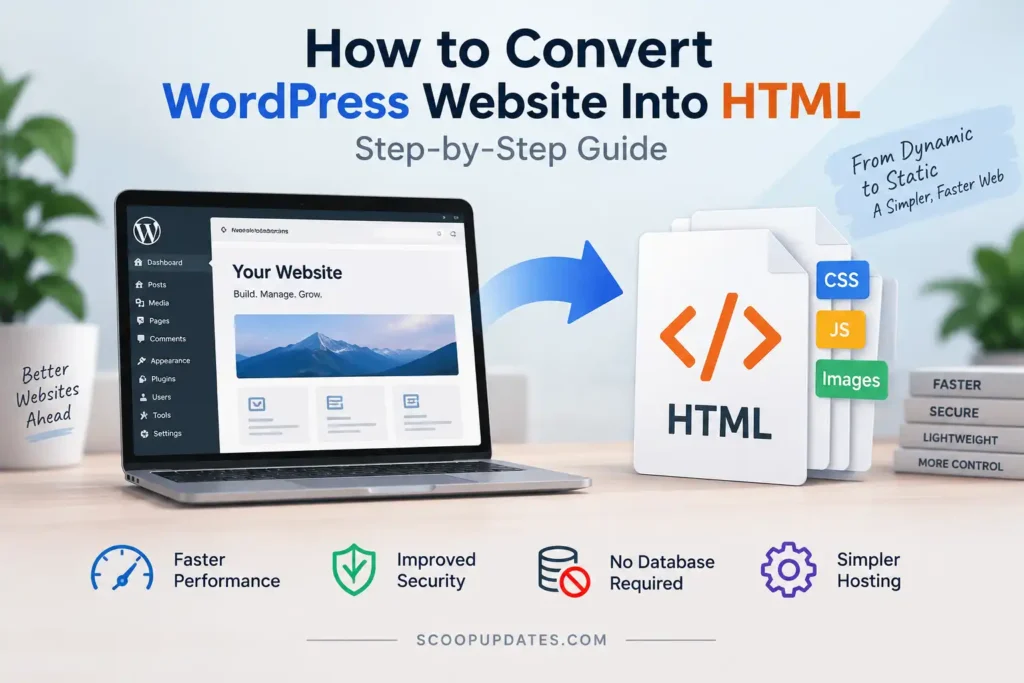
If you want a faster website with fewer server-side dependencies, learning how to convert WordPress website into HTML can be useful. The process creates static copies of your WordPress pages so visitors receive ready-made HTML, CSS, JavaScript and image files instead of waiting for WordPress and its database to build each page dynamically.
However, converting a WordPress site is not simply a matter of downloading a few HTML files. Forms, search, comments, redirects, internal links, canonical URLs and other dynamic functions need attention if you want the converted website to work properly.
This guide explains the complete process, including what changes after conversion, which websites are suitable for static HTML, and how to protect your existing SEO during the move.
What Does Converting WordPress to HTML Actually Mean?
WordPress is a dynamic content management system. When someone requests a page, the server normally processes PHP, retrieves information from the database, applies the theme and plugins, and generates the page that appears in the visitor’s browser.
A static HTML website works differently.
The finished pages already exist as files. The server mainly needs to deliver those files when somebody visits a URL.
Here is the basic difference:
| Feature | WordPress Website | Static HTML Website |
|---|---|---|
| Page generation | Generated dynamically | Pre-generated |
| Database | Usually required | Not required for public pages |
| PHP processing | Yes | Usually no |
| Plugins | Supported | WordPress plugins do not run on static frontend |
| Content updates | Easy through dashboard | Files must be regenerated or edited |
| Server requirements | PHP + database hosting | Basic/static hosting |
| Attack surface | Includes WordPress, plugins and login | Smaller public attack surface |
| Dynamic features | Easy to add | Require separate solutions |
Conversion therefore does not mean that HTML suddenly replaces every WordPress function. It means you create a static representation of the public-facing website.
Why Convert a WordPress Website Into HTML?
There is no reason to convert a healthy WordPress website simply because static websites exist. The change makes sense when the advantages solve a real problem.
Reduced server processing
A normal WordPress request may involve PHP execution, database queries, theme files and plugins. A static page has already been generated, reducing the amount of work required when someone requests it.
This can make a well-configured static site lightweight and easier to serve efficiently.
Smaller public attack surface
A public static frontend does not need a WordPress database, PHP execution or a publicly accessible WordPress dashboard.
That removes several components attackers commonly target. It does not make the website automatically immune to every security issue—third-party scripts, hosting accounts, DNS and other services still need protection.
Simpler hosting
HTML, CSS, JavaScript and image files can be hosted on many basic web servers or static hosting environments.
Better option for websites that rarely change
A company information site, portfolio, documentation archive or campaign website may remain unchanged for weeks or months. Maintaining a full CMS for such a website may be unnecessary.
For websites that change frequently, keeping WordPress may be considerably more convenient.
Before You Convert WordPress Website Into HTML
Do not begin by installing an exporter.
First, create an inventory of everything on the website.
Check:
- Posts and pages
- Category and archive pages
- Contact forms
- Search
- Comments
- Membership or login areas
- WooCommerce
- Calculators
- Filters
- Redirects
- XML sitemap
- Canonical tags
- Structured data
- Pagination
- RSS feeds
- JavaScript-driven content
This step determines whether static HTML is actually appropriate.
A content-focused website is relatively straightforward. A store with customer accounts, carts, checkout, live inventory and personalized content is a completely different project.
If you are evaluating different application models more broadly, our guide to desktop software development explains how web and locally installed software differ.
How to Convert WordPress Website Into HTML Step by Step
For most non-developers, using a WordPress static-site generator is easier than manually rebuilding every page.
The exact interface varies between tools, but the underlying process is similar.
Step 1: Create a complete backup
Back up the WordPress database and website files before making major changes.
Your backup should include at least:
- WordPress database
/wp-content/- Themes
- Plugins
- Uploaded media
- Important configuration files
Keep the backup separately from the live hosting account.
A staging copy is even better because you can perform the conversion without experimenting on the production website.
Step 2: Install a static site generator
A static site generator designed for WordPress crawls or renders your existing pages and saves the output as static files.
After installation, review its settings before generating anything.
Pay particular attention to the destination URL.
If the HTML version will continue using the same domain, configure the conversion accordingly. If it will be hosted at another domain or subdomain, links and asset paths need to reflect that destination.
Step 3: Generate the static files
Start the static export.
The tool will visit the accessible pages and generate the required HTML and supporting assets.
A typical output may resemble:
/index.html
/about/index.html
/contact/index.html
/blog/index.html
/wp-content/uploads/
/wp-content/themes/
Do not assume a successful export message means the entire site has been converted correctly.
The crawler can only generate pages it can discover or has been instructed to include.
Step 4: Inspect the exported website
Open the static version and navigate through it as a visitor.
Check the homepage, menus, posts, categories, images and important landing pages.
Look specifically for:
- Missing CSS
- Broken images
- Incorrect fonts
- Links pointing to staging
- Missing pages
- JavaScript errors
- Broken mobile navigation
- Incorrect asset paths
Testing is especially important if the original site relies heavily on JavaScript. Our explanation of DevOps in software development provides additional context on why development, testing and deployment should be treated as connected stages.
What Happens to WordPress Features After Conversion?
This is one of the most important parts of understanding how to convert WordPress website into HTML.
Some WordPress functionality cannot simply be frozen into a static page.
| WordPress feature | What happens on static HTML? | Possible approach |
|---|---|---|
| Text and images | Usually preserved | No major change |
| Navigation | Usually preserved | Test every menu |
| Contact forms | Backend processing stops | Use a compatible form handler |
| Comments | Existing comments may appear as static content | Use an external commenting system if needed |
| WordPress search | Stops working | Add client-side or external search |
| User login | Stops working | Requires separate authentication |
| WooCommerce checkout | Cannot operate as plain static HTML | Requires external/dynamic commerce system |
| Related posts | May freeze at export time | Regenerate during publishing |
| Scheduled posts | Do not automatically appear | Regenerate site after publishing |
| WordPress redirects | May disappear | Recreate at server/CDN level |
This is why static conversion works particularly well for informational sites but becomes more complicated as dynamic functionality increases.
How to Convert WordPress Website Into HTML Without Losing SEO
The HTML format itself is not the main SEO problem.
Changing URLs, removing important pages or accidentally changing indexation signals is much more dangerous.
Preserve existing URLs
Suppose the original page is:
example.com/services/web-design/Your static setup should ideally continue serving the page from that address.
Avoid unnecessarily turning it into:
example.com/services-web-design.htmlIf a URL genuinely must change, create a permanent redirect from the previous URL to its closest equivalent.
Preserve page-level SEO elements
Compare the source code before and after conversion.
Make sure important elements remain intact, including:
- Page titles
- Meta descriptions
- H1 headings
- Canonical tags
- Image alt text
- Internal links
- Structured data
- Robots directives
Do not assume the conversion tool has preserved everything.
Recreate your sitemap
SEO plugins can generate sitemaps dynamically inside WordPress. Once the public WordPress installation is removed, that functionality may no longer be available.
Your static website should have an updated sitemap containing the canonical URLs you want search engines to discover.
Check internal links
Static exports can sometimes leave URLs pointing toward the development installation, old domain or WordPress-specific paths.
Crawl or manually inspect the important pages after deployment.
For a broader understanding of how modern software components communicate, see our guide explaining what an AI gateway is.
Manual WordPress-to-HTML Conversion vs Automated Export
There are several ways to approach the conversion.
| Method | Difficulty | Best suited for | Main drawback |
|---|---|---|---|
| WordPress static export plugin | Low | Blogs and informational sites | Dynamic features require replacement |
| Website crawler/mirroring | Medium | Archiving an existing public site | Output may require cleanup |
| Manual HTML rebuild | High | Very small websites | Time-consuming |
| Static site generator workflow | High | Developer-managed sites | Requires technical knowledge |
| Headless architecture | High | Larger modern projects | More complex infrastructure |
For most small informational websites, an automated static export provides the easiest starting point.
Manual conversion makes more sense when the existing WordPress installation is messy and you want to rebuild the frontend rather than preserve it.
Testing Checklist After You Convert WordPress Website Into HTML
Do not point the main domain to the new website immediately after generating the files.
Test the static build first.
Verify that:
- Every important URL returns the correct page.
- Navigation works on desktop and mobile.
- Images and CSS files load correctly.
- Forms successfully deliver real test submissions.
- Canonical URLs point to the correct domain.
- Title tags and meta descriptions remain present.
- Structured data is still valid where required.
- Redirects work.
- The sitemap contains the correct URLs.
- No internal links point to staging.
- Custom JavaScript functions correctly.
- Important pages are not accidentally marked
noindex. - HTTPS works across the entire site.
Testing across multiple environments is an important part of software quality. You can also read our guide on AI orchestration to understand how increasingly complex technology workflows coordinate multiple tools and processes.
When You Should Not Convert WordPress to Static HTML
Static HTML is not automatically an upgrade.
Keeping WordPress is usually more practical if your site relies heavily on:
- WooCommerce
- Memberships
- User accounts
- Frequent publishing
- Personalized content
- Database-driven directories
- Advanced filtering
- WordPress-native forms
- Dynamic search
- Booking systems
You can replace many of these functions, but at some point the additional services and custom development eliminate the simplicity you were trying to gain.
The better question is therefore not merely, “Can this site be converted?”
Ask: Will a static architecture make this particular website easier to operate?
Security should also be considered at the architecture level rather than assuming one technology solves every risk. Our article on Shadow AI risks demonstrates the same broader principle: reducing unmanaged technology is often as important as choosing the technology itself.
WordPress or Static HTML: Which Should You Choose?
Choose WordPress when you need convenient publishing, plugins, database-driven features and frequent content changes.
Consider static HTML when the public website is primarily informational, changes infrequently and benefits from having a lightweight frontend with fewer server-side components.
A hybrid approach is another possibility. WordPress can remain in a protected environment for content management while a static version is generated and deployed to visitors. Editors retain the familiar dashboard, while the public-facing website receives pre-generated pages.
Final Thoughts
Learning how to convert WordPress website into HTML is mostly about understanding what happens after the export. Generating HTML files is relatively straightforward; preserving URLs, forms, search, metadata, redirects, sitemaps and other important functionality requires more care.
Start with a backup or staging copy, identify every dynamic feature, generate the static site, and test it thoroughly before changing the live domain.
For a simple blog, portfolio, documentation site or company website that rarely changes, static HTML can provide a lightweight public frontend. For stores, memberships and frequently updated websites, the flexibility of WordPress may still outweigh the benefits of going fully static.
The right solution is the one that reduces unnecessary complexity without removing functionality your visitors actually need.